
The most dangerous firewall command is often a valid one. It succeeds, returns exit code 0, and then your SSH session disappears.
The rule may be syntactically correct. The operational workflow was not safe.
If you administer Linux servers remotely, the important question is not only, “Will this firewalld command work?” It is also, “What restores access if my assumptions are wrong?” This is the workflow I use to reason about remote firewall changes: inspect the real path, test in runtime, verify from a new connection, persist the exact intent, and keep rollback independent from the session at risk.
Start with the two configurations firewalld actually maintains
firewalld has a runtime configuration and a permanent configuration. Treating them as one state is the source of many surprises.
- Runtime is the effective firewall configuration in the kernel now. A runtime-only change disappears after a reload, restart, or reboot.
- Permanent is the configuration stored on disk. It becomes runtime configuration after firewalld starts or reloads.
This separation is useful. It lets you test a change without immediately making it survive a reboot. It also creates drift: the server can behave one way now and another way after the next reload.
The official firewalld documentation is explicit: a reload replaces runtime configuration with permanent configuration, and runtime-only changes are lost. The same reload normally keeps connection-tracking state, so an existing SSH connection may survive even when a new one would fail.
Inspect the traffic path before changing it
Do not assume that the public zone protects your SSH connection. Determine which interface or source is active and which zone owns it.
sudo firewall-cmd --state
sudo firewall-cmd --get-active-zones
sudo firewall-cmd --get-zone-of-interface=eth0
Replace eth0 with the interface that carries your management connection. If firewalld binds the zone by source address rather than interface, inspect the source bindings reported by --get-active-zones.
Then compare the relevant zone in both configurations:
sudo firewall-cmd --zone=public --list-all
sudo firewall-cmd --permanent --zone=public --list-all
Replace public with the active zone you identified. For SSH, make the check explicit:
sudo firewall-cmd --zone=public --query-service=ssh
sudo firewall-cmd --permanent --zone=public --query-service=ssh
These commands answer different questions. The first tells you whether new SSH connections are allowed now. The second tells you whether they should remain allowed after a reload or reboot.
Use temporary runtime rules for additive experiments
Suppose an application needs TCP port 8443 in the active zone. firewalld can add the runtime rule with a timeout:
sudo firewall-cmd --zone=public --add-port=8443/tcp --timeout=10m
sudo firewall-cmd --zone=public --query-port=8443/tcp
The rule expires automatically after ten minutes. The --timeout option works with runtime additions such as services, ports, protocols, forward ports, masquerading, and rich rules. It cannot be combined with --permanent.
Now test the application from another machine or a fresh connection. Confirm more than reachability:
- The service listens on the expected address and port.
- The source network reaches the intended zone.
- No broader network gained access by accident.
- A new SSH connection still succeeds.
If the test fails, allow the temporary rule to expire or remove it explicitly. If it succeeds, add the permanent rule, validate the stored configuration, and replace the timed runtime rule with a non-expiring runtime rule:
sudo firewall-cmd --permanent --zone=public --add-port=8443/tcp
sudo firewall-cmd --check-config
sudo firewall-cmd --zone=public --remove-port=8443/tcp
sudo firewall-cmd --zone=public --add-port=8443/tcpQuery both configurations after every step:
sudo firewall-cmd --zone=public --query-port=8443/tcp
sudo firewall-cmd --permanent --zone=public --query-port=8443/tcp
Both states now contain the reviewed rule, so no reload is required to activate it. If you plan to reload for another reason, compare runtime and permanent state first. A reload does not promote only the port you changed; it makes the complete permanent configuration the new runtime configuration. Any unrelated runtime-only rule will disappear.
When that full transition is intentional:
sudo firewall-cmd --reload
sudo firewall-cmd --zone=public --query-port=8443/tcp
sudo firewall-cmd --permanent --zone=public --query-port=8443/tcp
Open a new SSH connection after the reload. Do not use the survival of the original session as your health check.
Destructive remote changes need an independent rollback
Temporary additions are the friendliest case. The dangerous operations are removals and routing changes:
- removing the
sshservice or its port; - moving the management interface or source to another zone;
- changing a zone or policy target to
DROPorREJECT; - modifying a rich rule that controls the management path;
- changing a policy between ingress and egress zones;
- reloading permanent state that has drifted from runtime.
firewalld does not provide --timeout for removal commands. A command such as the following has no timed safety net:
sudo firewall-cmd --zone=public --remove-service=sshFor a risky change, the rollback mechanism must meet three conditions:
- Arm it before the mutation. Scheduling recovery after the change is too late if the connection drops immediately.
- Run it outside the SSH session. A shell process tied to the endangered connection is not a dead-man's switch.
- Cancel it only after independent verification. Test a new connection through the path that future operators will use.
Depending on the environment, the independent mechanism may be a pre-scheduled systemd unit, an orchestration control plane, a provider recovery console, or a second management network. The specific tool matters less than the ownership boundary: the process responsible for recovery must survive the connection and application you are changing.
Avoid promoting unrelated runtime state
firewall-cmd --runtime-to-permanent can save the entire active runtime configuration as permanent configuration. That is useful when you intentionally constructed and reviewed the whole runtime state.
It is too broad for many one-rule maintenance tasks.
Runtime may contain temporary diagnostics, rules installed by another administrator, or changes made by software. Promoting all of it because one port passed a test can preserve state you never meant to keep.
Prefer an explicit permanent command for the object you reviewed. Use --runtime-to-permanent only when the complete runtime configuration is the intended permanent result.
Zones and policies protect different paths
Zones usually describe traffic arriving at the host through interfaces or sources. Policies describe traffic moving between ingress and egress zones, including symbolic zones such as HOST and ANY.
That distinction matters on routers, gateways, container hosts, and homelab machines that forward traffic. A server can keep accepting SSH while a policy change breaks forwarding for every client behind it. Conversely, a forwarding test says nothing about access to the host itself.
Before editing a policy, identify:
- its ingress and egress zones;
- whether those zones are active;
- its target and priority;
- the services, ports, and rich rules attached to it;
- the runtime and permanent version of each property.
The safe workflow stays the same: model the path, isolate the change, preserve a rollback, and verify the path from outside.
A remote-change checklist I can use under pressure
Before the change
- Identify the active interface or source and its zone.
- Capture runtime and permanent state.
- Confirm how SSH reaches the host.
- Keep out-of-band recovery available.
- Arm rollback before destructive mutation.
During the change
- Test additive changes in runtime first.
- Use a timeout when supported.
- Change one logical unit at a time.
- Query the resulting state.
- Treat partial success as failure.
Before persistence
- Establish a new SSH connection.
- Test from an external client.
- Review runtime/permanent drift.
- Persist only the intended object.
- Run
--check-config.
After persistence
- Query both configurations.
- Establish another new SSH connection.
- Verify forwarding separately.
- Cancel rollback after verification.
- Record what changed and why.
Why I built a TUI for this workflow
The hard part of firewalld is not command syntax. The hard part is keeping scope, state, identity, risk, and recovery visible at the same time.
That is why I built FWDeck, an open-source terminal UI for firewalld. It shows runtime and permanent scope on every row, puts a confirmation in front of mutations, warns when a change intersects the current SSH path, and rejects a mutation if firewalld changed after the confirmation screen was reviewed.
Disclosure: I am the author and maintainer of FWDeck. The command-line workflow above does not require it.
For risky operations, FWDeck uses a dead-man's switch. On systems with systemd and sufficient privileges, it pre-arms an out-of-process rollback watchdog before applying the mutation. If the UI crashes, receives SIGKILL, or loses the SSH session, the watchdog can still revert the change. When that stronger watchdog is unavailable, FWDeck reports the limitation and falls back to in-process rollback rather than pretending the guarantees are identical.
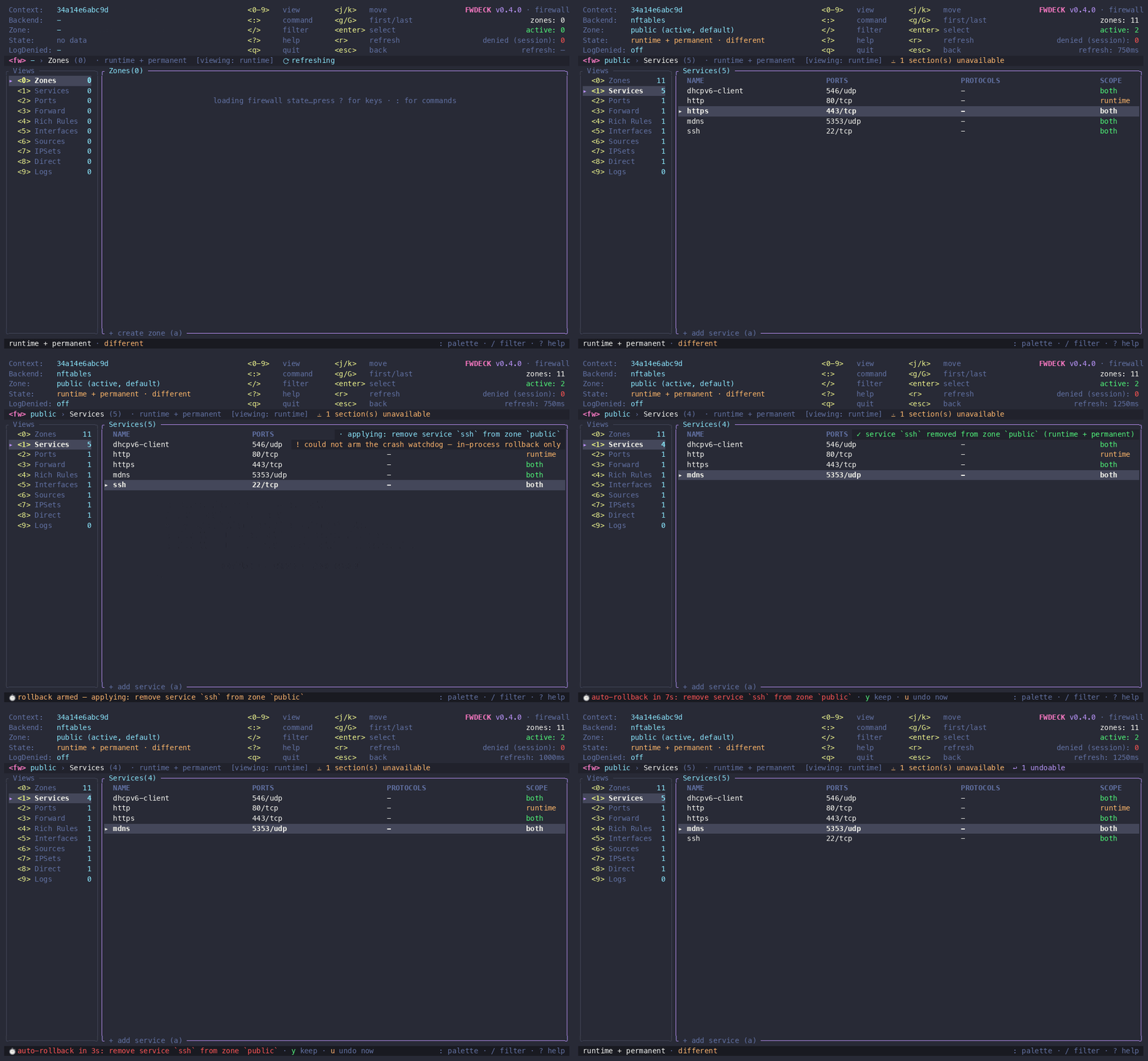
FWDeck does not replace understanding firewalld. It makes the operational model harder to lose during a maintenance window.
You can inspect your system without enabling mutations:
cargo install fwdeck --locked
fwdeck doctor
fwdeck --read-only
Full control requires root or suitable polkit authorization. FWDeck runs on Linux with firewalld; the crash-resistant watchdog additionally requires systemd and root. The default backend uses firewall-cmd, and an optional native D-Bus backend supports reads and the runtime mutations it can represent honestly.
A successful command is not the definition of safety
I no longer think of a firewall change as one command followed by a connectivity check. It is a small transaction with a precondition, a mutation, an independent rollback, and a verification step from outside the system being changed.
The CLI can support that discipline. A TUI can make the state and guardrails more visible. Neither can recover from a workflow that has no path back.