FWDeck Documentation
Everything you need to install, verify, and operate FWDeck — the safety-first terminal UI for firewalld.
Introduction
FWDeck puts your entire firewalld state on one screen — every zone, service, port, forward, rich rule, and binding, with runtime vs permanent scope visible on every row — and puts a review step in front of every change.
Requirements: Linux with firewalld (firewall-cmd
on PATH). Root or polkit authorization for mutations — without it FWDeck runs
read-only with a visible explanation, and it never re-executes itself with sudo.
Installation
Install script (recommended)
Downloads the right binary, verifies the SHA-256 checksum, and verifies the Cosign release signature before anything is installed:
$ curl -fsSL https://raw.githubusercontent.com/madebydaniz/fwdeck/main/scripts/install.sh | bash
Options: --version v0.5.1 · --install-dir ~/bin ·
--no-verify-signature (not recommended).
Distribution packages (.deb / .rpm)
Every release also
ships native .deb and .rpm packages (amd64 and arm64)
that install the binary, shell completions, and man page to the standard system
paths and declare a dependency on firewalld. Their checksums are
covered by the same Cosign-signed checksums.txt.
# Debian / Ubuntu — download the .deb for your arch from the release, then:
$ sudo apt install ./fwdeck_*.deb

# Fedora / RHEL — download the .rpm for your arch, then:
$ sudo dnf install ./fwdeck-*.rpm
apt/dnf repository (so plain
apt install fwdeck works without downloading first), and eventual
inclusion in the official Debian and Fedora repositories, are on the roadmap.Prebuilt binaries
Every release also ships signed archives for x86_64 and
aarch64, in glibc and fully-static musl variants. Each archive
contains the binary, bash/zsh/fish completions, the man page, and the license.
From source
$ cargo install --git https://github.com/madebydaniz/fwdeck --locked
Needs Rust 1.88+.
Verifying releases
Releases are signed with Cosign keyless (Sigstore): the signature certificate is bound to this repository's release workflow identity — a signature from anywhere else fails verification.
VERSION=v0.5.1
curl -fsSLO "https://github.com/madebydaniz/fwdeck/releases/download/${VERSION}/checksums.txt"
curl -fsSLO "https://github.com/madebydaniz/fwdeck/releases/download/${VERSION}/checksums.txt.bundle"

cosign verify-blob \
  --bundle checksums.txt.bundle \
  --certificate-identity-regexp "^https://github.com/madebydaniz/fwdeck/\.github/workflows/release-binaries\.yml@refs/tags/v[0-9]+\.[0-9]+\.[0-9]+$" \
  --certificate-oidc-issuer "https://token.actions.githubusercontent.com" \
  checksums.txt

sha256sum -c checksums.txt --ignore-missing
First run
$ fwdeck doctor        # checks your environment — never touches the firewall
$ fwdeck --read-only   # look around safely; mutations disabled in the engine
$ sudo fwdeck          # full control (or a user with polkit authorization)
doctor reports the firewalld version, daemon state, netfilter
backend, zone count, and whether FWDeck can read your configuration.
Coming from firewall-cmd
FWDeck drives firewall-cmd under the hood — it is a
review layer, not a replacement. Every mutation's confirmation shows the exact
$ firewall-cmd … it will run, and you can always drop back to the
CLI. If you know firewalld, here is where each command lives:
firewall-cmd | In FWDeck |
|---|---|
--list-all-zones / --list-all | Zones view (0); enter on a zone → full overview |
--get-active-zones | the ACTIVE column in Zones |
--add-service / --remove-service | Services (1) → a / d |
--add-port / --remove-port | Ports (2) → a / d |
--add-forward-port | Forward (3) → a |
--add-rich-rule | Rich Rules (4) → a, or : → Build rich rule |
--add-interface / --add-source | Interfaces (5) / Sources (6) → a |
--set-target | Zones → : → Set target |
--add-masquerade · --add-forward · --add-icmp-block-inversion | Zones → m · : → Toggle forwarding / Toggle inversion |
--add-source-port · --add-protocol | Zones → : → Add source-port / Allow protocol |
--new-ipset / --ipset ... --add-entry | IPSets (7) → : → Create ipset / Add ipset entry |
--get-policies / --info-policy | Policies (p) → enter for full runtime/permanent details |
--set-default-zone | Zones → : → Set default zone |
--permanent (scope) | the mutation target (--target / config, or narrowed per-op); t flips the runtime/permanent view |
--reload | ctrl-r |
--runtime-to-permanent | : → Runtime to permanent |
--panic-on / --panic-off | : → panic |
The interface
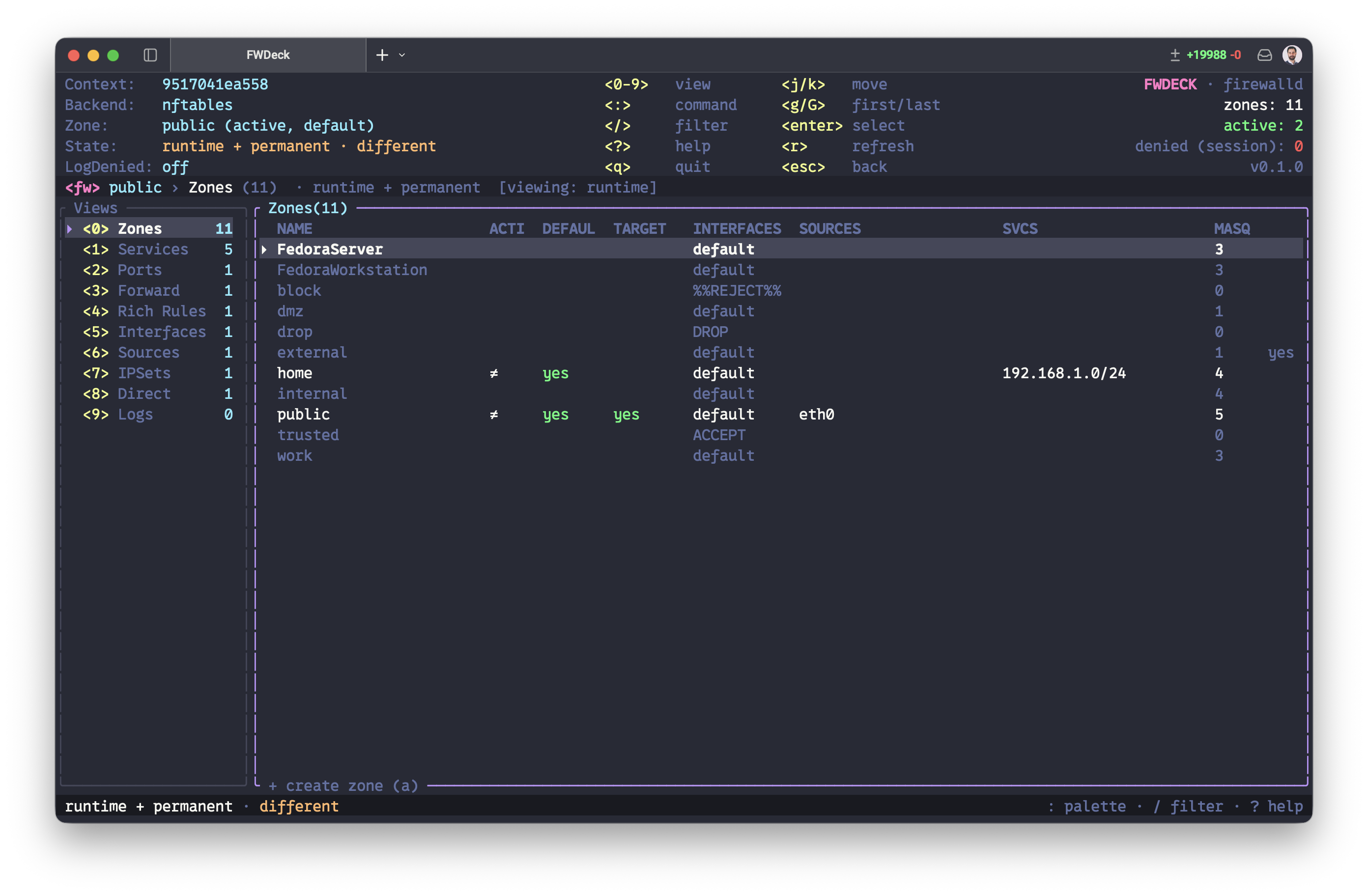
- Header — context, netfilter backend, selected zone, global
runtime-vs-permanent state (
synced/different), LogDenied, and live counters (zones, active, denied this session). - Breadcrumb — where you are: zone › view · scope ·
[viewing: runtime|permanent]perspective. - Views sidebar — eleven views with row counts; switch with 0–9, and p for Policies.
- Table — the current view's rows. Inactive zones are dimmed;
the
≠marker means that row differs between runtime and permanent. - Status bar — mutation target and the three always-on entries: : palette · / filter · ? help.
- Dialogs — text-heavy overlays use the available terminal width and wrap long descriptions instead of clipping them. In Help, About, and Details, use ↑/↓ when the title shows a scroll indicator.
Views — the complete guide
Eleven views, switched with 0–9 plus p for Policies (or the sidebar). Each section below shows the view, explains what it is for, and walks through every action with a hands-on example. Every mutation opens a confirmation first — y applies, s stages it for a batch, n cancels.
The effective zone. Views 1–6 (services,
ports, forwards, rich rules, interfaces, sources) always act on one
zone — the effective zone, shown in the breadcrumb
(<fw> public › …). To work on a different zone, go to
Zones (0), highlight it, and press enter:
that selects it as the effective zone (and opens its overview). Everything you
do afterwards applies there until you pick another.
Keys that work in every table. j/k or arrows move · g/G jump to first/last · a add · d delete the selected row (or every space-marked row) · c clone the row into a prefilled add form · t flip the runtime ⇄ permanent perspective · Y copy the row · enter row details · : palette · / filter · ctrl-f global search.
0 · Zones
What you see — every firewalld zone with its
TARGET (the fate of unmatched packets), which are
ACTIVE (have a binding) and which is DEFAULT, plus
service/masquerade columns and the ≠ drift marker.
What you can do here — pick the effective zone, create and delete zones, and set every zone-wide attribute: default zone, target, masquerade, intra-zone forwarding, icmp-block inversion, source-ports, and protocols.
Examples
- Switch the working zone: highlight
home→ enter. The overview opens and every other view now acts onhome. - Inspect all drift: i (or enter) opens the Zone Overview — services, ports, source-ports, protocols, forwards, rich rules, masquerade, forwarding, icmp-inversion, and target, each showing where runtime and permanent differ.
- Create a zone: a →
dmz-lab→ y. Zones are permanent-only; press ctrl-r to reload and activate it. - Make it the default: : → Set default zone → y.
- Harden the policy: : → Set target of
`…` →
DROP. A DROP/REJECT target warns you first — it blocks everything not explicitly allowed. Permanent-only; reload to activate. - Masquerade / forwarding / inversion: m toggles masquerade; : → Toggle intra-zone forwarding or Toggle icmp-block inversion.
- Allow a protocol or source-port: : → Allow
protocol in `…` →
gre(VPN), or Add source-port →68/udp. - Delete a zone: d → y (permanent-only).
1 · Services
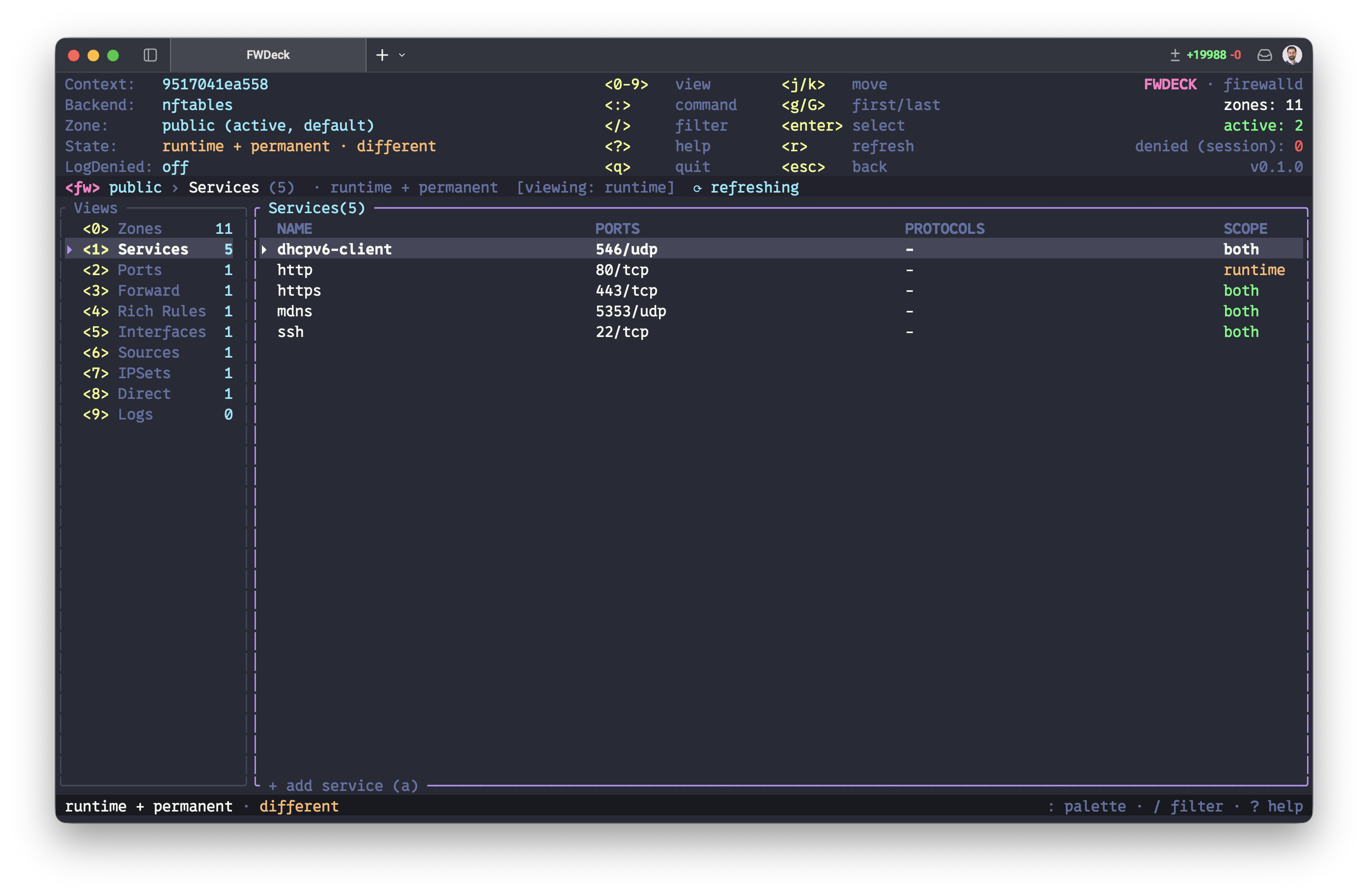
What you see — the named services allowed in the effective
zone. The SCOPE column is the core idea: both survives
a reload, runtime disappears on reload, permanent
takes effect only after one.
What you can do here — allow and remove services, browse the full service catalog, define custom services, and grant a temporary (auto-expiring) service.
Examples
- Allow a service: a →
https→ y. - Remove one: highlight
ssh→ d → y. Deletes narrow automatically to where the entry actually exists (runtime-only, permanent-only, or both). - Browse what's available: : → Browse service catalog lists every service firewalld knows.
- Temporary allow: : → Temporary service
→
https 300opens https for 300 s (runtime-only, auto-removed by firewalld). - Custom service: : → Create service →
myapp, then Add port to service →myapp 9200/tcp. Permanent-only; reload to use it.
2 · Ports
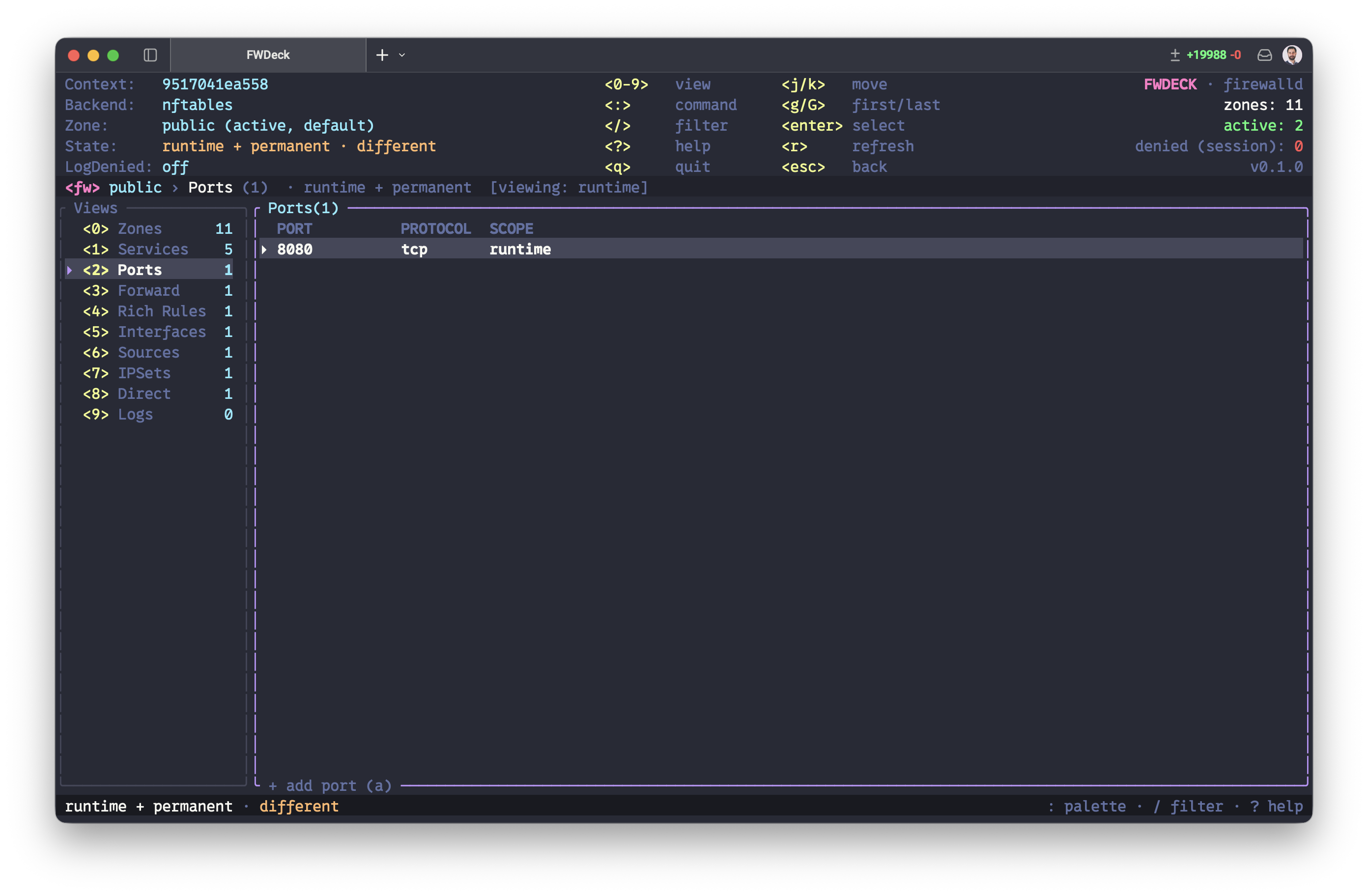
What you see — individual ports and ranges open in the effective zone, each with its scope.
What you can do here — open and close ports/ranges.
Examples
- Open a port: a →
8080/tcp→ y. - Open a range: a →
5000-5010/udp→ y. - Close one: highlight the row → d → y (this can cut connections, so it warns first).
- Clone-and-tweak: c on
8080/tcpprefills the form so you can change it to8081/tcpand add.
3 · Forward
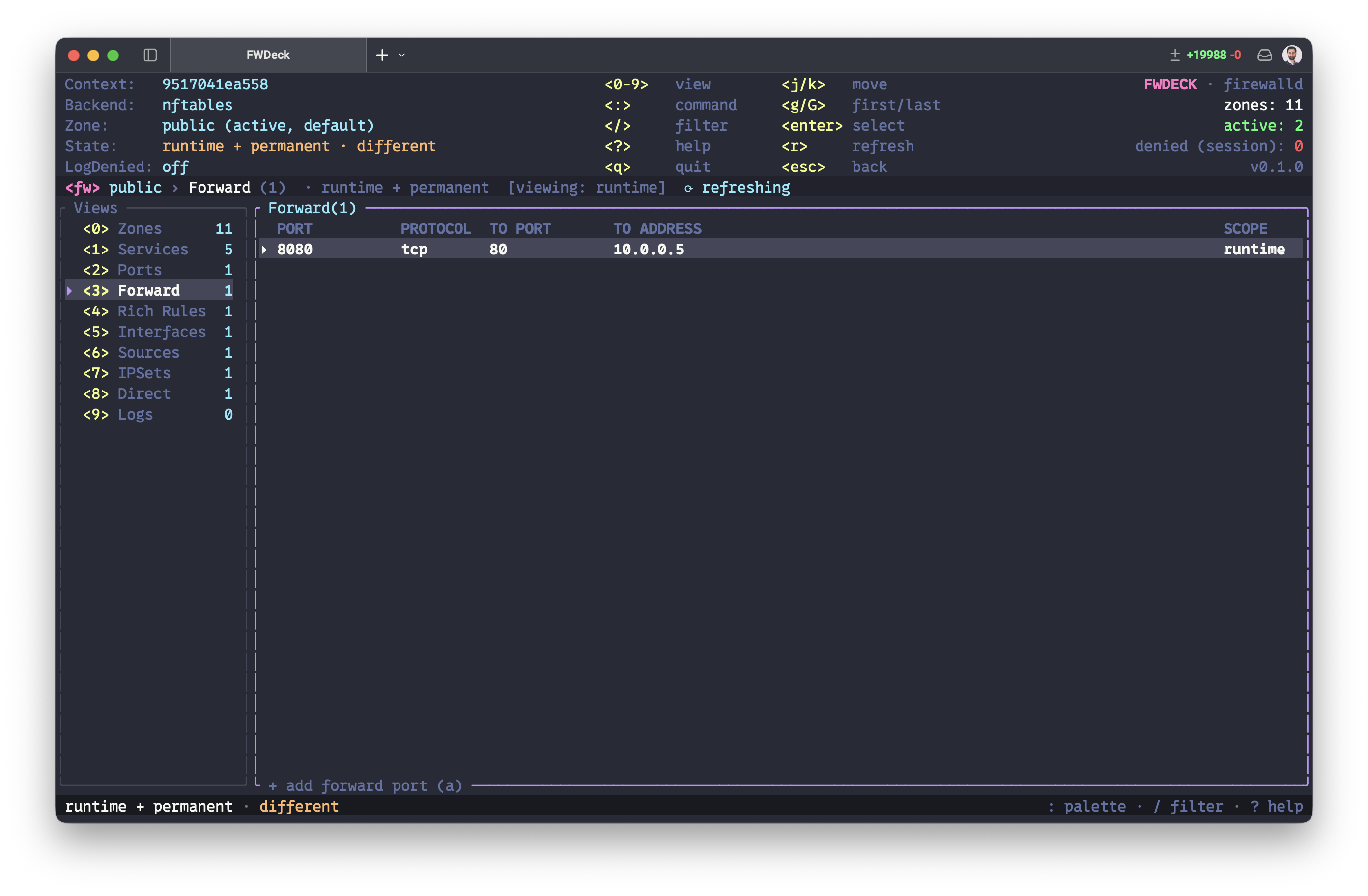
What you see — port-forwarding (DNAT) rules of the effective zone.
What you can do here — add and remove forwards using the compact spec syntax.
Examples
- Forward a port: a →
port=8080:proto=tcp:toport=80→ y. - Forward to another host: add
:toaddr=10.0.0.5to the spec. (DNAT needs masquerade — set it in the Zones view.) - Remove: d → y.
4 · Rich Rules
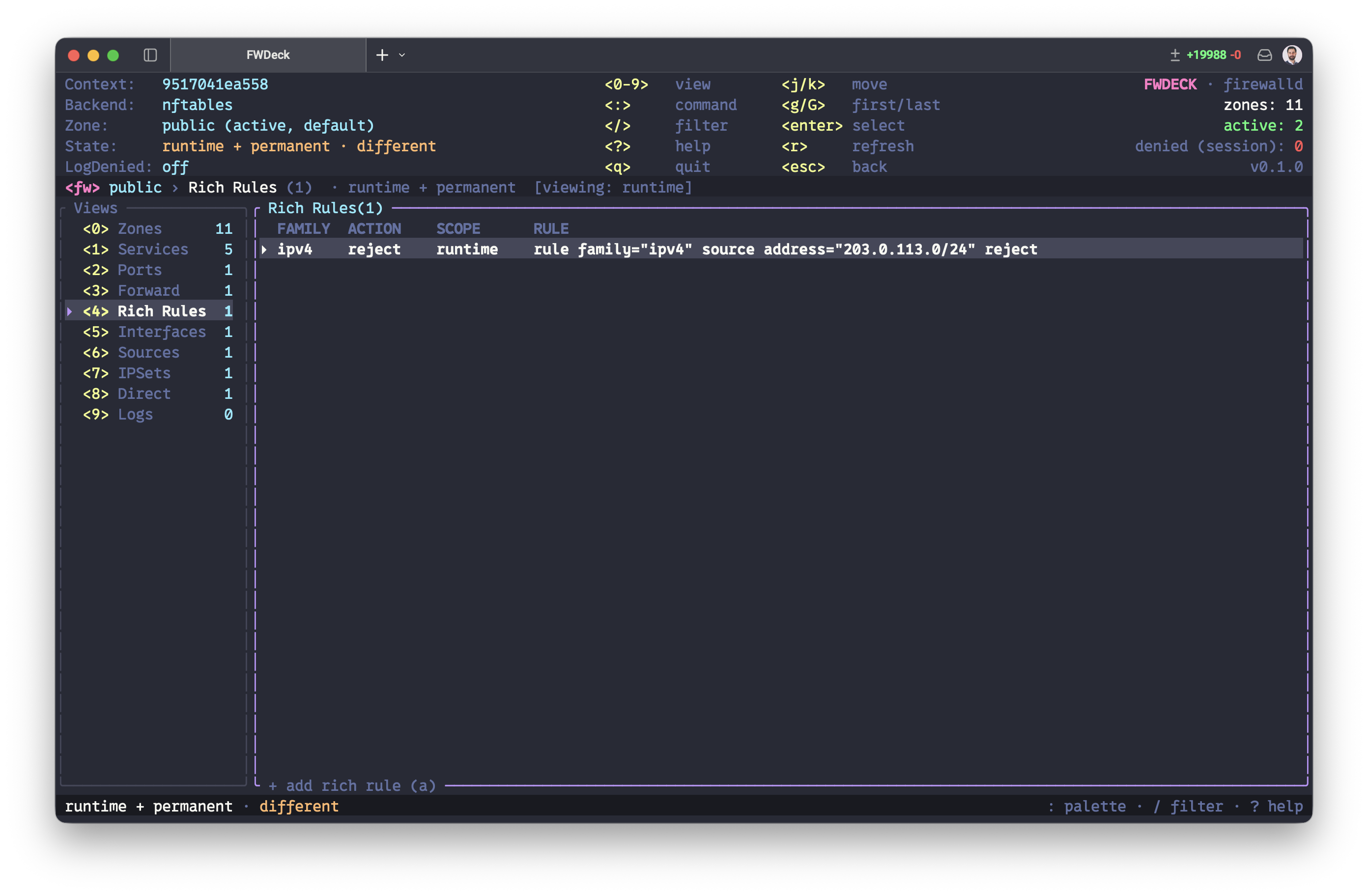
What you see — the effective zone's rich-language rules, stored and applied verbatim. FWDeck never reconstructs (and so never corrupts) your rule text.
What you can do here — write a rule by hand, or assemble one with the guided builder; remove or clone existing rules.
Examples
- Guided builder: : → Build rich rule →
family
ipv4→ source203.0.113.0/24→ match (blank) → actionreject. A live preview shows the exact rule before you confirm. - Write one directly: a →
rule family="ipv4" source address="10.0.0.0/8" accept→ y. - Remove: highlight → d → y. (Removing a rule can cut connections, so it warns.)
5 · Interfaces
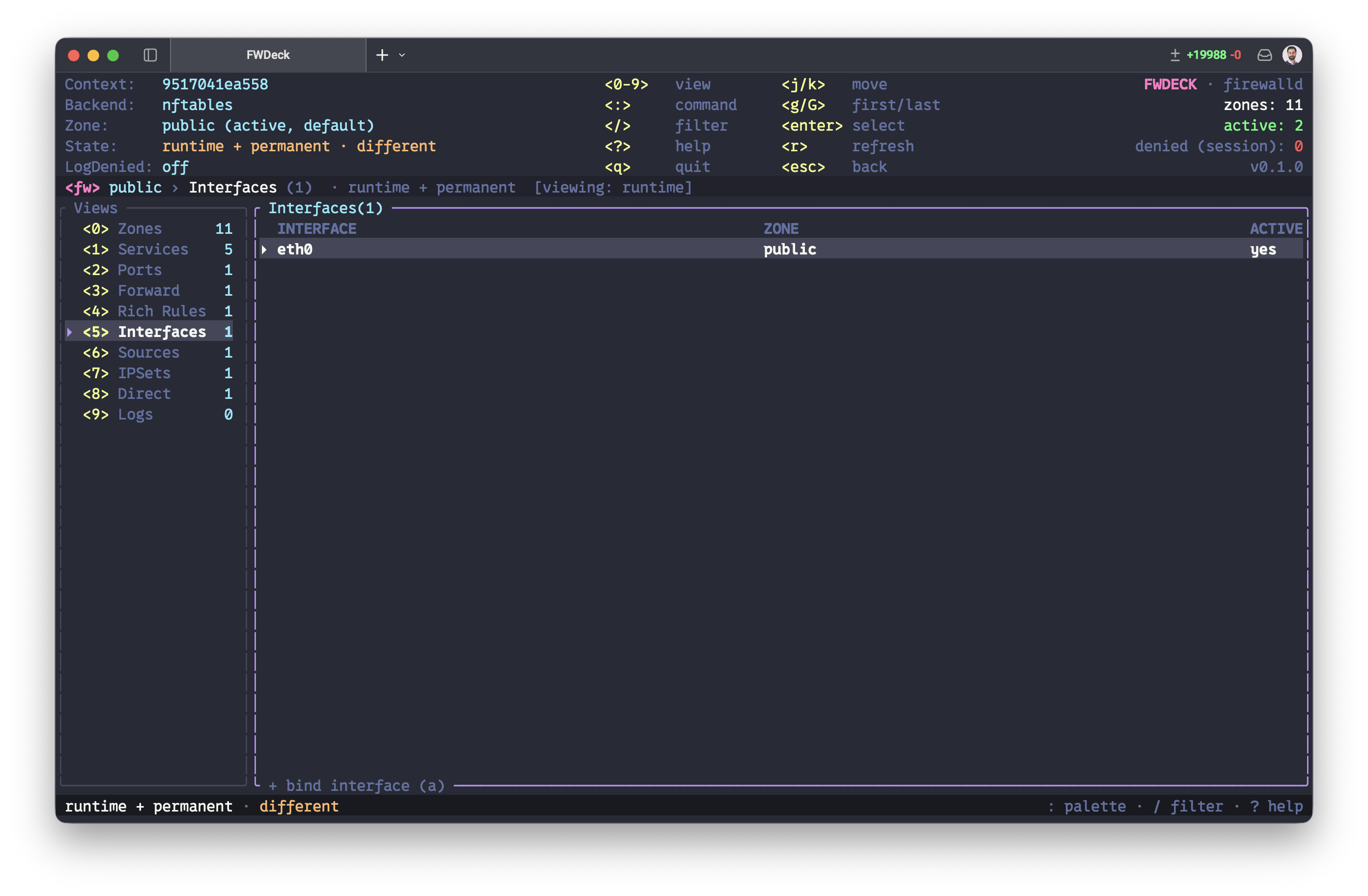
What you see — the interfaces bound to the effective zone. Binding an interface is how a zone becomes active.
What you can do here — bind and unbind network interfaces. FWDeck knows which interface carries your SSH session and warns before you touch its zone.
Examples
- Bind an interface: a →
eth1→ y. The zone is now active. - Unbind: highlight → d → y. Traffic on that interface falls back to the default zone — the confirmation says so.
6 · Sources
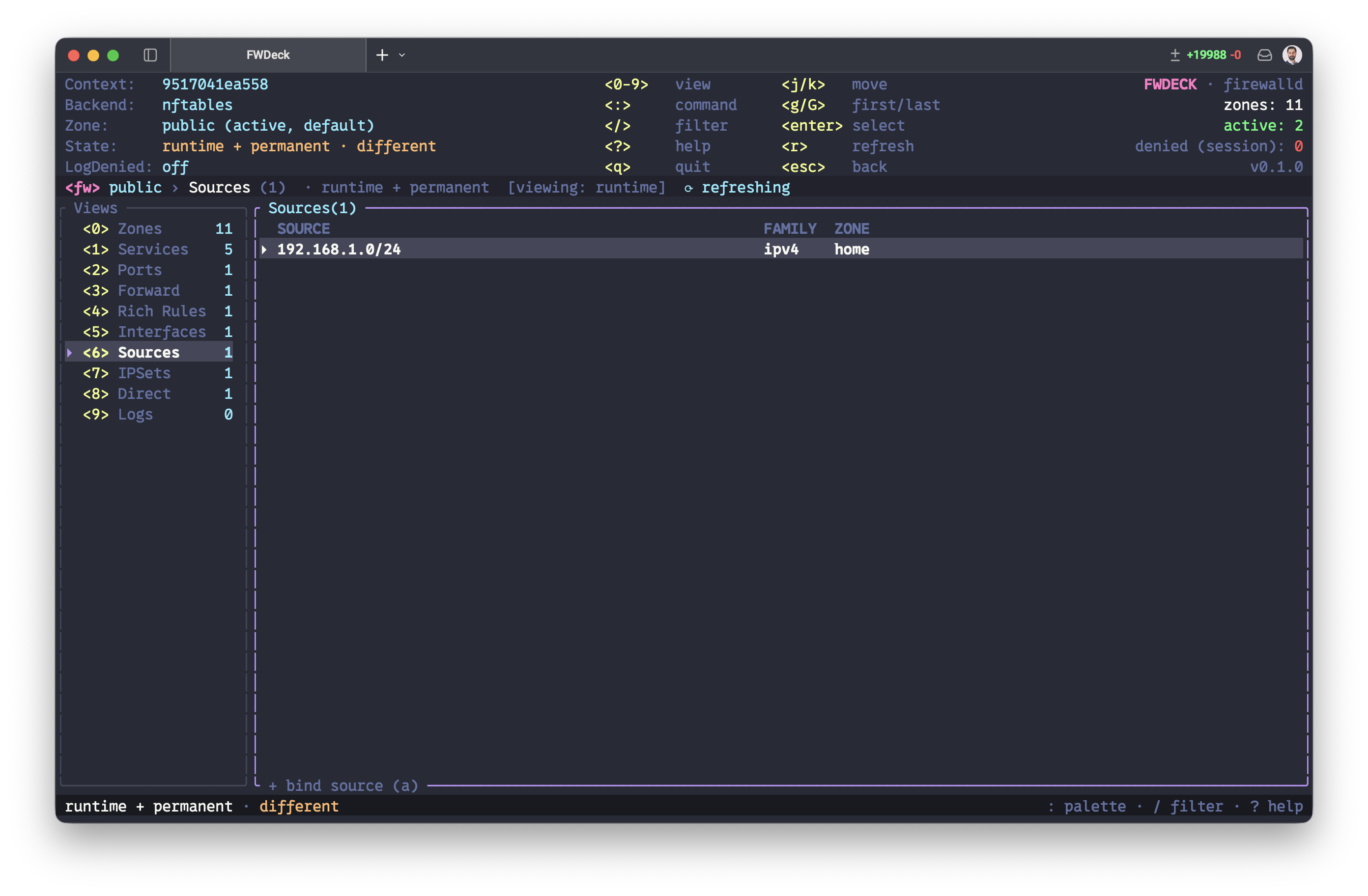
What you see — the source bindings of the effective zone. Source-based zoning routes traffic from an address into this zone, regardless of interface.
What you can do here — bind and unbind sources: an IP, a CIDR, a MAC address, or an ipset reference.
Examples
- Bind a subnet: a →
192.168.1.0/24→ y. - Bind an ipset: a →
ipset:blocklist→ y (see the IPSets view). - Bind a MAC: a →
aa:bb:cc:dd:ee:ff→ y. - Unbind: d → y.
7 · IPSets
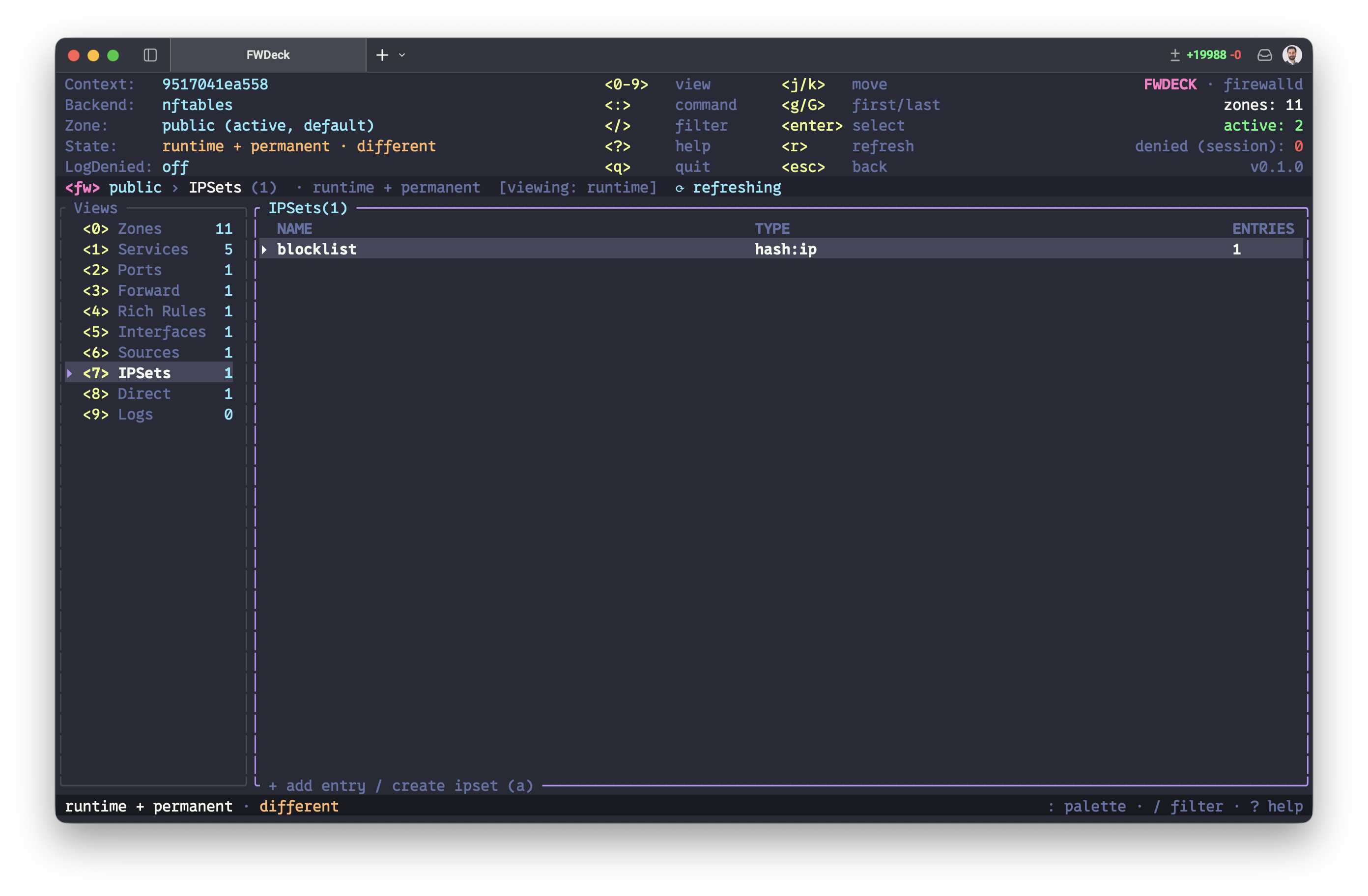
What you see — defined ipsets and their entry counts. Ipsets are reusable block/allow lists you can then bind as a source.
What you can do here — create and delete ipsets and manage their entries. Ipset lifecycle is permanent-only (reload to activate).
Examples
- Create an ipset: : → Create ipset →
blocklist hash:ip→ y. (Type defaults tohash:ipif omitted.) - Add an entry: highlight the ipset → : → Add
ipset entry →
203.0.113.9. Compound types work too, e.g.1.2.3.4,tcp:80for ahash:ip,portset. - Remove an entry: : → Remove ipset
entry →
203.0.113.9. - Use it: bind
ipset:blocklistas a source (view 6) to drop or route that whole list.
8 · Direct
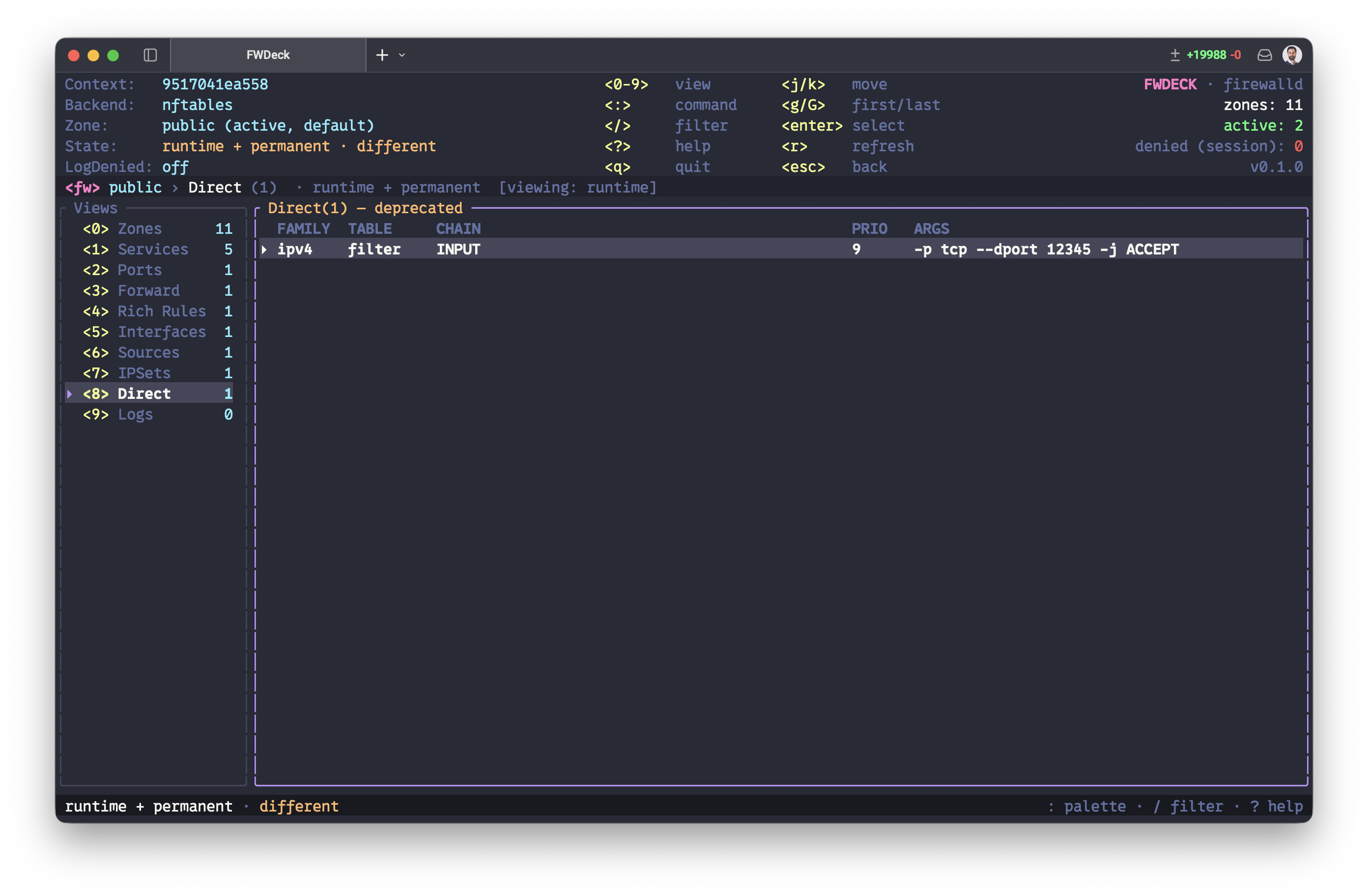
What you see — firewalld's legacy direct (raw iptables/nftables passthrough) rules, with a deprecation warning.
What you can do here — the legacy rule itself stays read-only. Press enter to see whether FWDeck has a conservative policy candidate, or open : → Direct-rule migration assistant to classify every rule. The assistant fails closed: only IPv4/IPv6 filter rules on INPUT, OUTPUT, or FORWARD with supported address, protocol, port, and ACCEPT/DROP/REJECT matches are translated.
Safe migration — highlight an eligible rule and press
a (or choose Migrate selected direct rule), then provide a
new policy name. FWDeck creates an additive permanent policy with the mapped
ANY/HOST direction and a reviewed rich rule. It never removes the direct rule:
reload, validate real traffic, then retire the legacy rule manually with
firewall-cmd --direct. Unsupported tables, custom chains, match
modules, negation, NAT, and ambiguous expressions stay manual.
9 · Logs
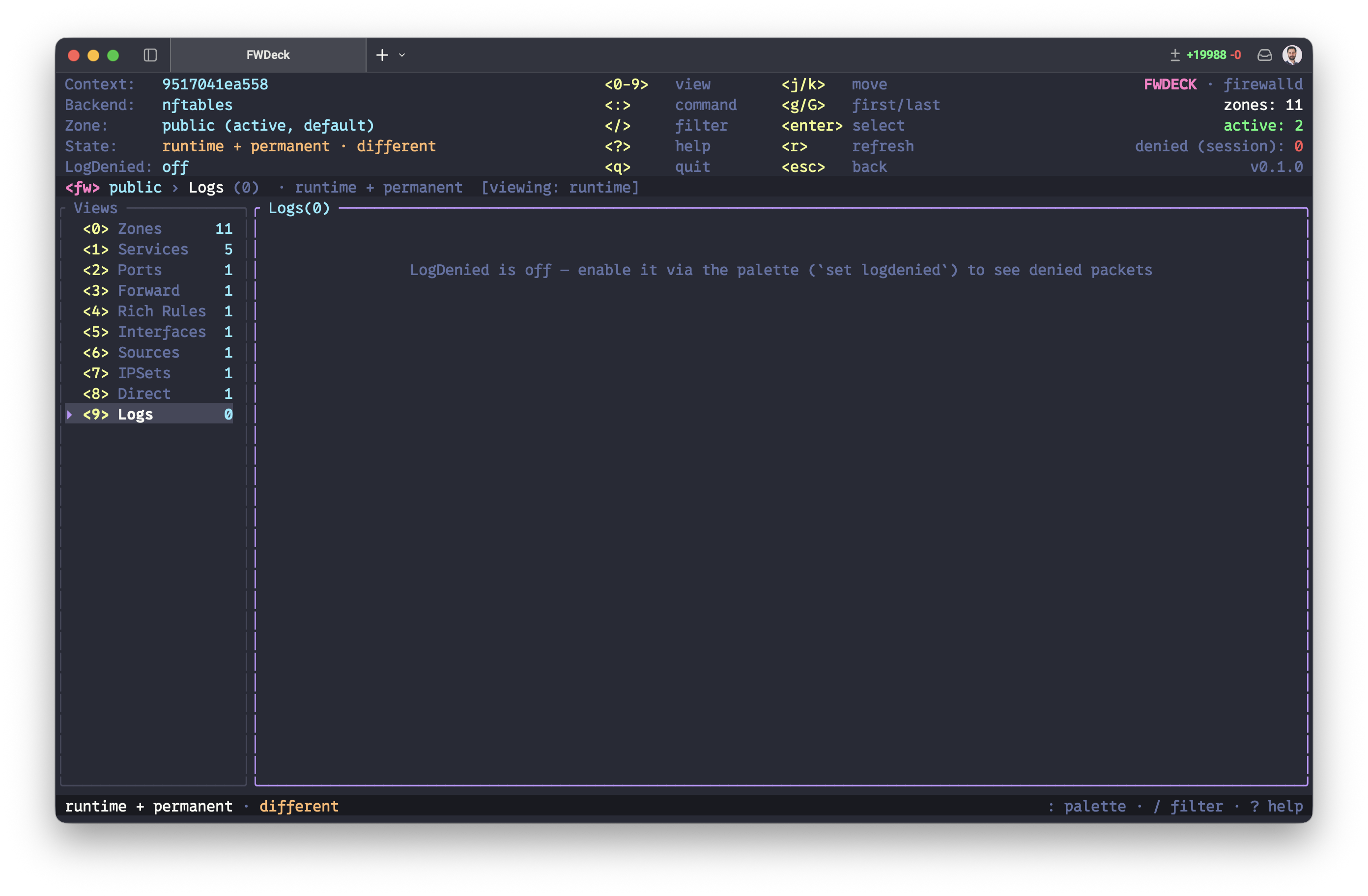
What you see — a live kernel/netfilter tail (via
journalctl -kf, falling back to dmesg --follow) with a
session denied-packet counter in the header.
What you can do here — watch dropped/rejected traffic in real time and filter it. This view is read-only.
Examples
- See denied traffic: it needs firewalld's
LogDeniedto be on. Turn it on withfirewall-cmd --set-log-denied=all(see the FAQ). - Filter: / → type an address or port to narrow the tail; ctrl-f searches log rows alongside every other view.
p · Policies
What you see — first-class firewalld policy objects with
target, ingress → egress direction, services, aggregate rule count, active
state, and runtime/permanent scope. A broken state means a
referenced zone or service is missing.
What you can do here — press enter for the full configuration (priority, ports, protocols, forwarding, source ports, ICMP, masquerade, rich rules, and dependency health). Press a to add a service to the selected policy, or to create the first policy when the view is empty. Press d to review deletion of the selected permanent policy. All changes still use the normal validation and confirmation flow.
Dependency safety — open : → Policy dependency graph to inspect runtime and permanent ingress, egress, and service edges, including missing or unknown references. FWDeck blocks permanent zone or service deletion while a policy still references it, and fails closed when the relevant dependency data could not be read.
Policy sets — on firewalld 2.4 or newer, open
: → Browse policy sets to inspect the shipped
gateway set, its member policies, and separate runtime/permanent
administrative state. Use Set policy-set state with
gateway enable or gateway disable. The change uses the
normal confirmation, exact command preview, staged-plan, verification, and
rollback flow. Older or unknown firewalld versions are blocked explicitly.
Policies are stateful and unidirectional: an ingress → egress policy does not automatically govern the reverse direction. See the official firewalld policy model.
Search, diffs & counters
Global search
Press ctrl-f to fuzzy-search rows across every view at
once — type zone, a service name, a port, or an address and jump
straight to the match (it switches view and selects the row). This is different
from /, which filters only the current view.
Session diff — what changed since startup
FWDeck captures the first snapshot of the session as a baseline. The palette command Session diff shows a read-only list of every change since then — handy after a maintenance window to review exactly what you touched.
Snapshot diff
Diff against snapshot shows a read-only diff of the live firewall against a saved snapshot — how the current state differs from that point in time. Unlike Restore, it never stages or applies anything.
Multi-level undo
Every applied-and-verified reversible change is pushed onto an undo stack. The palette command Undo last operation reverts the most recent — and again for the one before it — each as a normal reviewed mutation. (This is separate from the countdown-based dead-man's-switch rollback, which is what u triggers; see Safety.)
Rule-hit counters
Rule-hit counters reads live nftables per-chain packet/byte counters
(nft -j list ruleset) and lists the busiest firewalld chains first.
Requires the nftables backend and root; firewalld only counters some rules, so
an empty list is normal, not an error.
Workflows
Single-action recipes (allow a service, open a port, add a forward, set a target, …) live in the per-view guide above. This section covers the multi-step workflows that span views. Every mutation shows a confirmation first — y applies · s stages · n cancels.
Delete several rules at once
Mark rows with space (✓), then d — one confirmation lists everything that will be removed.
Risky change with a safety net
Changes that can cut your session start a rollback countdown after applying: confirm you still have a working session with y, or press u — or lose the session — and FWDeck reverts automatically.
Stage a batch, apply once
Answer s instead of y in any confirmation, repeat, then
: → Show staged plan → review → apply. Export the plan as a
firewall-cmd script, JSON, or Ansible playbook from the palette.
Snapshot before maintenance
: → Save configuration snapshot before you start; : → Restore from snapshot after. Restore diffs the snapshot against the current state and stages the way back — you review before anything is applied.
Runtime-only experiment
$ fwdeck --target runtime # a reboot reverts everything
Experiment freely, then : → Runtime to permanent to persist what worked.
Panic button
: → panic → confirm. Drops all traffic; the same
command turns it off.
Safety features
- Validation first — duplicates, unknown zones, and malformed input are rejected before any modal opens.
- Confirmation modals — every mutation states the exact resource, zone, scope, and connectivity risk.
- Stale-state guard — the exact observed snapshot reviewed at confirmation travels with the mutation. Immediately before execution the engine bypasses refresh caches, reads firewalld again, repeats validation, and rejects the operation or entire staged plan if state changed. No mutation command or rollback guard starts on that rejected path.
- Dead-man's switch — risky changes auto-revert after
rollback_timeout_seconds, on u, or when you quit inside the countdown, unless you confirm a working session. An out-of-process systemd watchdog is pre-armed before the change is applied, so the revert survives a crash,SIGKILL, or dropped SSH session; where systemd/root is unavailable it degrades to in-process rollback. - SSH awareness — FWDeck resolves the interface your SSH session uses and warns precisely when a change targets its zone.
- Honest partial failures — runtime-applied / permanent-failed is reported as exactly that, with per-step invocations and a rollback hint.
- Audit trail — every applied operation is recorded as JSONL
under
~/.local/state/fwdeck/with its exact invocations. It is an advisory, append-only record (files are0600), not a cryptographically tamper-evident log — treat it as an operational history, and ship it to a central log store if you need integrity guarantees. - Single mutation owner — an OS-backed lock permits only one writer at a time and releases ownership automatically when that process exits. Read-only sessions do not claim the mutation lock.
- Bounded inputs and probes — interactive mutation fields have an explicit byte cap, and external probes such as nftables counters run behind a hard timeout.
- Read-only mode —
--read-onlydisables mutations in the engine, not just the UI.
On a remote server
This is what FWDeck is built for: editing the firewall of a box you are connected to over SSH, without locking yourself out. The rails below make that safe — read this once before you touch a production firewall remotely.
Before you start
- Run inside
tmuxorscreen—tmux new -s fwthenfwdeck. If your SSH session drops, FWDeck keeps running; reconnect andtmux attach -t fw. (And even if the whole process dies, the out-of-process watchdog still reverts — see below.) - Look before you leap — start with
fwdeck --read-onlyto explore, then relaunch with privileges. - Keep the rollback on — the dead-man's switch is on by
default (
rollback_timeout_seconds = 30). Don't set it to0on a remote box. - Snapshot first — : → Save configuration snapshot before a big change, so Restore and Diff against snapshot give you a clean way back.
How the safety net protects you
- SSH-aware warnings — FWDeck resolves the interface, source, or default zone your session actually rides on and warns precisely when a change targets it — not a vague "this might disconnect you".
- Rollback countdown — any change that can cut connectivity
(remove a service/port/rich-rule, a
DROP/REJECTtarget, masquerade off, removing your SSH interface/source) starts a countdown after it applies. Confirm your session still works with y. If it doesn't — do nothing; FWDeck reverts automatically when the timer expires. - Survives a crash or dropped SSH — the revert is armed as an out-of-process systemd timer before the change is applied, so it fires even if FWDeck is killed, the terminal closes, or the SSH session drops mid-countdown. Without systemd/root it degrades to the in-process countdown.
- Leftover-watchdog scan — on startup FWDeck warns about any
fwdeck-rollback-*timer left by a previous crashed session.
A safe remote workflow
tmux new -s fw→sudo fwdeck(or a polkit user).- Explore in read-only if unsure; snapshot before big edits.
- Stage changes with s instead of applying one by one, review the plan (: → Show staged plan), then apply once.
- When the countdown starts, test the session from a second terminal (a fresh SSH connection). If it works, press y to keep; if not, let it revert.
Recovery — if you do get locked out
- Wait it out. If the rollback was armed, it reverts within the timeout (plus a watchdog grace margin) even with no connection.
- Get in out-of-band. Provider web console, KVM/IPMI, or serial. From there you have a local shell regardless of the firewall.
- Undo the last change.
firewall-cmd --reloadrestores the permanent config into runtime (discarding a bad runtime-only edit), orfirewall-cmd --panic-offif panic mode is stuck on. - Fix the permanent config offline. If the daemon or network
is down,
fwdeck --offline(orfirewall-offline-cmd) edits the on-disk permanent config from a rescue shell — no daemon required — then reboot or start firewalld. - Last resort.
systemctl stop firewalldto drop all filtering and regain access, then reconcile and restart it.
Keybindings
| Key | Action |
|---|---|
| 0–9 | switch view (clears filter) |
| j/k, arrows, g/G, PgUp/PgDn | navigate rows |
| enter | zone overview (Zones) / row details |
| a | add entry for the current view |
| d | delete selected — or all marked — entries (confirmed) |
| space | mark row (multi-select) |
| c | clone selected entry into a prefilled form |
| m | toggle masquerade |
| i | zone overview |
| : | command palette (fuzzy — everything is in here) |
| / | filter rows live (current view) |
| ctrl-f | global search across every view |
| r / ctrl-r | refresh / reload firewalld (confirmed) |
| y / s / n | confirm / stage / cancel |
| y / u | keep / undo during a rollback countdown |
| Y | copy selected row (works over SSH via OSC 52) |
| ? | help overlay |
| esc / q | close / quit |
Privileges & permissions
Reading firewalld and — especially — mutating it needs authorization. FWDeck never escalates on its own: it does not re-execute itself with sudo. Without the rights to mutate, it starts in read-only mode with a banner explaining why, so you always know where you stand.
Option A — sudo (simplest)
$ sudo fwdeck
sudo, FWDeck's
state (log, audit trail, snapshots) is written under root's
~/.local/state/fwdeck/, not yours. Use sudo -E or a
polkit user if you want them in your own home.Option B — polkit (no blanket sudo)
firewalld authorizes mutations through polkit, so you can let a specific group
manage the firewall as a normal user — cleaner than blanket sudo
for shared boxes. Create a group, add your user, and drop in a rule:
# groupadd fwadmin && usermod -aG fwadmin alice

# /etc/polkit-1/rules.d/90-fwdeck.rules
polkit.addRule(function(action, subject) {
  if (action.id.indexOf("org.fedoraproject.FirewallD1") === 0 &&
      subject.isInGroup("fwadmin")) {
    return polkit.Result.YES;
  }
});
Members of fwadmin can now run fwdeck (and
firewall-cmd) without sudo, and state lands in their own
home. Verify with fwdeck doctor, which reports your full
authorization surface. Adjust the action prefix to your distro's firewalld
polkit actions if it differs.
No privileges at all
FWDeck runs read-only: every view works, every mutation is disabled with a clear reason. Great for auditing a box you only have read access to.
Configuration
~/.config/fwdeck/config.toml — CLI flags always override:
[ui]
theme = "dracula"                # dracula | high-contrast | mono
color = true
show_help_bar = true
sidebar_width = 22

[behavior]
default_target = "runtime-and-permanent"   # or "runtime" / "permanent"
refresh_interval_ms = 5000
confirm_destructive_actions = true
rollback_timeout_seconds = 30   # dead-man's switch; 0 disables
read_only = false

[logging]
level = "info"                  # file log: ~/.local/state/fwdeck/fwdeck.log

[retention.snapshots]
max_count = 100
max_age_days = 90
min_keep = 10                   # pinned snapshots never auto-delete

[retention.exports]
max_count = 20
max_age_days = 30

[retention.audit]
max_files = 10                  # includes the active audit.jsonl
max_file_size_mb = 5
refresh_interval_ms is a fixed delay after the previous refresh
attempt completes. Manual refresh requests are reliable and coalesced. A
confirmed change or rollback takes priority over an ordinary background read;
FWDeck then completes a fresh reconciliation before accepting the next change.
FWDeck shows status and zone data as soon as the overview stage completes. Service and policy details continue loading in the same cancellable refresh; only the final complete or explicitly degraded snapshot becomes authoritative for validation, snapshots, and exports. The latest selected zone, service, or policy reprioritizes detail batches that have not started yet. An active subprocess is allowed to finish, so changing selection does not create a cancellation storm or a second backend owner.
Retention runs at startup and after new state is written. It only removes regular files with FWDeck-generated names; symlinks, imported snapshots, and unknown files are ignored. Preview the exact plan before applying it:
fwdeck prune --dry-run       # read-only; this is also the default mode
fwdeck prune --apply         # apply the displayed policy
fwdeck snapshots list       # show managed/pinned snapshots
fwdeck snapshots pin snapshot-1700000000000.json
fwdeck snapshots unpin snapshot-1700000000000.json
CLI flags
fwdeck --read-only          # inspection only
fwdeck --zone public        # open with a zone selected
fwdeck --target runtime     # default mutation target
fwdeck --backend dbus       # native D-Bus backend (build with --features dbus)
fwdeck --offline            # permanent config via firewall-offline-cmd
fwdeck --no-color           # reduced-color terminals
fwdeck prune --dry-run      # inspect retention without deleting files
fwdeck completions zsh      # shell completions (bash|zsh|fish)
fwdeck manpage              # man page to stdout
Offline mode & backends
Offline mode
fwdeck --offline manages the permanent configuration via
firewall-offline-cmd — for rescue systems, chroots, and
provisioning, where the daemon isn't running. The header shows
"offline · permanent config only"; daemon-only operations (reload,
panic mode, runtime-to-permanent) are reported as unsupported instead of
failing cryptically.
Backends
FWDeck talks to firewalld through a swappable backend. The default drives
firewall-cmd with typed, fixture-tested parsing, and is the
full-featured reference. An optional native D-Bus backend
(cargo build --features dbus, then --backend dbus)
implements the same interface but is runtime-only: it covers
reads and runtime mutations, and permanent-config changes are not yet
implemented over D-Bus — it refuses them loudly (use the
default firewall-cmd backend for permanent changes) rather than
half-applying. It also does not yet fetch ipsets, policies, direct rules, or
service definitions, which show as unknown rather than empty.
Automation & scope
FWDeck is deliberately interactive and single-host — a human-in-the-loop review tool for one server's firewall. It is not a configuration-management engine, and that is a feature, not a gap.
Fitting it into automation
- Export a reviewed plan — stage your changes, then
: → Export staged plan as a
firewall-cmdscript, JSON, or an Ansible playbook. Build it interactively, apply it repeatably. - Provisioning & images —
fwdeck --offlineedits the permanent config with no running daemon, for chroots, golden images, and rescue environments. - Non-TUI subcommands —
fwdeck doctor(scriptable environment check),fwdeck completions bash|zsh|fish, andfwdeck manpagerun without the UI.
Many servers (a fleet)
For managing dozens of hosts, use a configuration-management tool — the
ansible.posix.firewalld module is the natural fit. FWDeck is the
companion you reach for to inspect, understand, and safely hand-edit one
host — the export feature bridges the two.
Exit codes worth knowing
FWDeck surfaces firewalld's own conditions plainly: exit 252 =
the daemon isn't running, 253 = you're not authorized (it falls back
to read-only). A --query-panic exit 1 means panic is
off, not an error. fwdeck doctor spells all of this out.
FAQ & troubleshooting
"INVALID_ZONE" after creating a zone?
Zone creation is permanent-only in firewalld (by design). Until you reload (ctrl-r), the new zone exists only in the permanent config — FWDeck automatically narrows your changes to permanent and tells you to reload to activate.
Everything is read-only?
You're not root and don't have polkit authorization. The header explains
this. Run with sudo or configure polkit for your user.
The Logs view is empty?
Denied-packet logging is off by default in firewalld. Toggle LogDenied on
from the palette (: → Set LogDenied to `unicast`), or pick
another level with firewall-cmd --set-log-denied=all, and make
sure your kernel logs reach journald/dmesg. Some
container kernels can't emit netfilter logs at all.
An interface binding didn't persist?
On NetworkManager-managed systems, NM owns interface-zone assignment
(connection.zone). FWDeck behaves exactly like
firewall-cmd; for NM-managed connections consider making the
binding permanent, or set the zone on the NM connection itself.
Where are logs, audit, snapshots?
~/.local/state/fwdeck/ — fwdeck.log,
audit.jsonl plus bounded timestamped archives,
snapshots/, and versioned exports/. Files are private;
fwdeck doctor reports recognized file counts, bytes, pin state, and
how many files the current retention policy would prune.
Development
Development runs against a real firewalld in a disposable container — the host firewall is never touched:
$ docker compose run --rm dev   # Fedora + firewalld + Rust, repo mounted
$ cargo run                     # inside: the TUI with real data
$ cargo test                    # fixtures + fake-runner suite
$ make test-real                # serialized container-only suite
$ make coverage-dbus            # Fedora real-daemon D-Bus coverage
Quality gates enforced in CI: cargo fmt --check,
clippy -D warnings (both feature sets), tests, MSRV 1.88,
cargo-deny, CodeQL, and a 60% line-coverage floor for the D-Bus adapter.
Compatibility behavior is tested separately on Fedora, Debian, and AlmaLinux.
Commits follow
Conventional Commits —
release-please turns them into releases automatically. See
CONTRIBUTING.md.